How to Create and Send Invoices with QuickBooks Online (QBO)
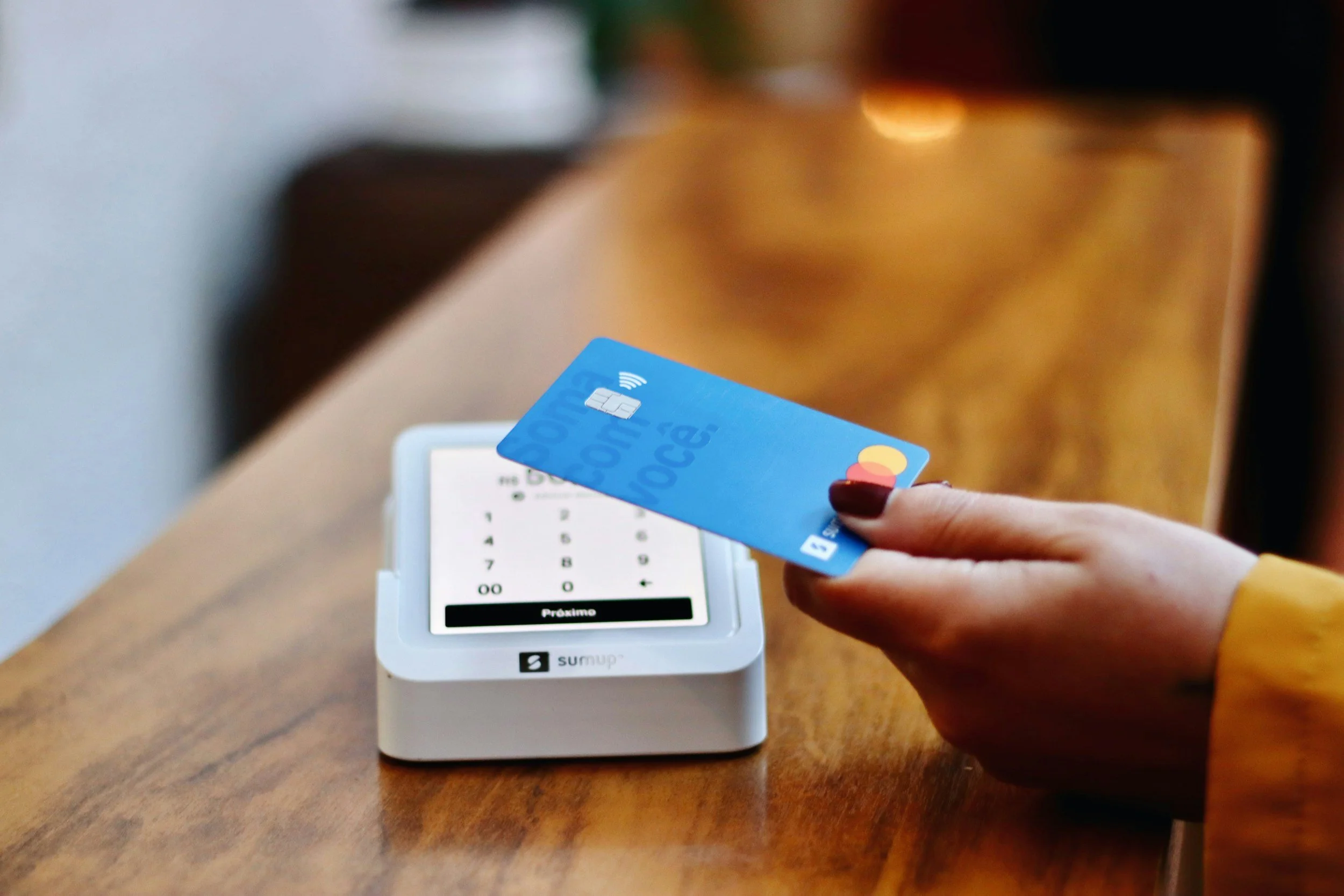
Get paid faster with a simple, professional system
If you’re still sending invoices manually (or worse… not sending them consistently), you’re making things harder than they need to be.
With QuickBooks Online (QBO), you can create, send, and track invoices in just a few minutes… and even get paid faster.
Here’s exactly how to do it.
Why Use QuickBooks for Invoicing?
Before we get into the steps, here’s why QBO is worth using:
Professional-looking invoices
Easy tracking of who has paid (and who hasn’t)
Ability to accept credit card and ACH payments
Automatic reminders for unpaid invoices
Everything tied directly into your bookkeeping
No double entry. No confusion. Just clean records.
Step 1: Set Up Your Customer
Before sending an invoice, you’ll need to create a customer in QBO.
How to do it:
Go to Sales → Customers
Click New Customer
Enter:
Name
Email address
Phone number (optional)
Billing address (optional)
Click Save
Step 2: Create an Invoice
Now let’s create the actual invoice.
Steps:
Click + New (top left)
Select Invoice
Choose your customer from the dropdown
Fill in the details:
Invoice date
Due date
Invoice number (auto-generated or custom)
Step 3: Add Products or Services
In the invoice form, you’ll add what you’re charging for.
Example:
“Standard Cleaning – 2 Bed / 2 Bath”
“Pressure Washing – Driveway”
“Bookkeeping – Monthly Service”
For each line:
Description
Quantity (if applicable)
Rate
Amount (auto-calculates)
Tip: Set up Products & Services in advance to speed this up.
Step 4: Customize Your Invoice (Optional but Recommended)
You can make your invoice look more professional:
Add your logo
Choose colors
Adjust layout
Add payment terms (Net 7, Net 15, etc.)
Go to: Settings → Custom Form Styles
Step 5: Enable Online Payments (Game Changer)
Want to get paid faster? Turn on payments.
QBO allows you to accept:
Credit cards
ACH bank transfers
To enable:
Click Settings → Payments
Follow setup instructions
Turn on payment options on your invoice
Now your client can click and pay instantly.
Step 6: Send the Invoice
Once everything looks good:
Click Save and Send
Review the email message
Click Send
Your customer receives a professional invoice directly in their inbox.
Step 7: Track and Follow Up
QBO makes it easy to track invoice status:
Sent
Viewed
Paid
Overdue
Go to: Sales → Invoices
You can also:
Send reminders
Resend invoices
See aging reports (who owes you money)
Bonus: Set Up Recurring Invoices
If you have repeat clients (monthly bookkeeping, recurring cleaning, etc.):
Create an invoice
Click Make Recurring
Set schedule (weekly, monthly, etc.)
QBO will automatically send invoices for you.
Common Mistakes to Avoid
❌ Forgetting to send invoices promptly
❌ Not setting clear due dates
❌ Not following up on unpaid invoices
❌ Using vague descriptions
❌ Not enabling online payments
Small fixes here = faster cash flow.
Final Thoughts
Invoicing isn’t just admin work — it’s how you get paid.
Using QuickBooks Online makes the process:
Faster
Cleaner
More professional
Easier to track
And most importantly — it helps you get paid on time.
Contact us by click here
or send us an email at David@RuckandReconcile.com
Check out our services here
Learn more about Ruck and Reconcile here
And as always, thanks for reading and we’ll see you next week!